DJ Controller No Sound? Follow the Audio Signal Path
Work through the audio chain instead of randomly changing settings.
Start with the signal path
Think from software to controller to master output to speaker. Confirm a track is playing, the channel fader is open, crossfader position is appropriate, master level is raised and the correct audio device is selected in the DJ software.
Check the physical connection
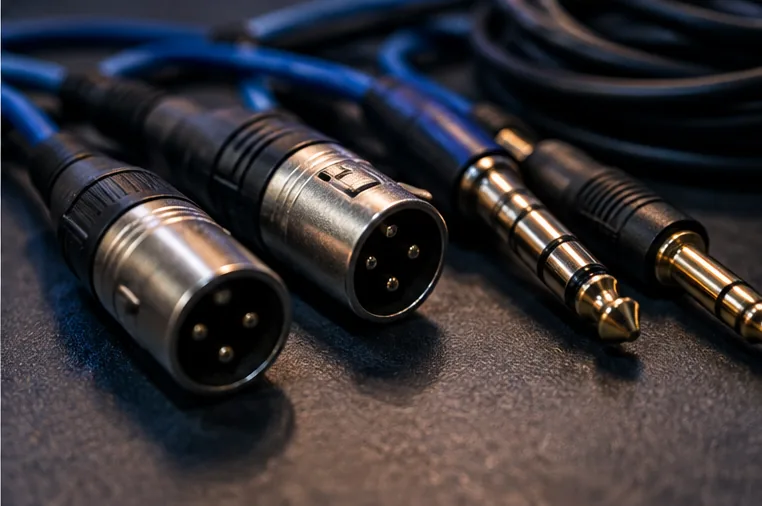
Confirm the cable is connected to MASTER OUT rather than a booth, input or headphone socket. If using powered speakers, make sure they are switched on and set to an appropriate input mode.
Headphones but no speakers
If cue audio works but master output does not, the controller is receiving audio. Focus on master routing, cable choice, speaker input and master level.
Speakers but no headphones
Check the channel cue button, headphone level and cue/master blend. Also verify the software is routing cue output to the controller’s headphone channels.
Change one thing at a time
Troubleshooting is faster when you isolate the problem. Swapping software settings, cables and speakers simultaneously makes it harder to identify the actual cause.
Change one variable at a time
Good troubleshooting is controlled testing. Confirm the obvious basics, make one change, then test again. If you replace the cable, change the software audio device and reboot the controller simultaneously, you may fix the problem without learning what caused it—and the fault can return at the worst moment.
Separate software from hardware
Whenever possible, test whether the computer sees the controller before opening DJ software, then verify whether the software recognises the device, and finally test audio output. This separates USB or driver problems from DJ-application routing problems.
Keep a known-good baseline
For regular gigging, know which cable, USB port and software configuration are proven to work. Save experimental mappings or unusual audio settings separately. Returning to a known-good setup is one of the fastest ways to diagnose a new failure.