Serato DJ Lite: Your First Controller Setup
Install, route audio, analyse tracks and test cueing before your first mix.
Check the exact hardware first
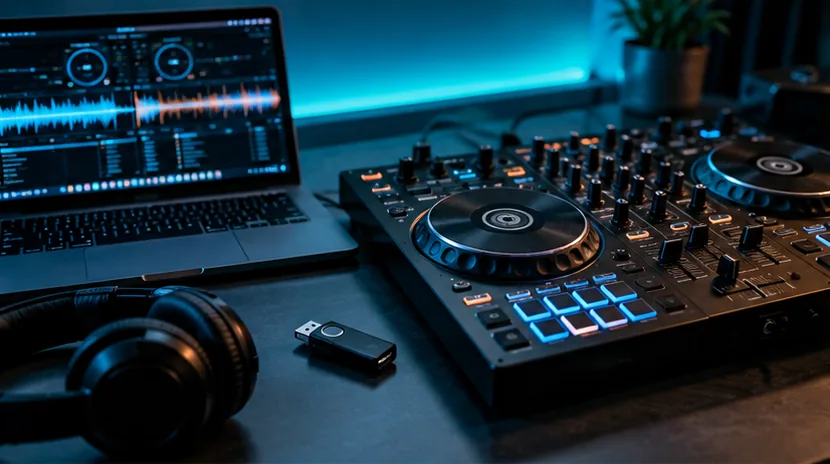
Serato DJ Lite is intended to work with supported hardware, and support and unlock behaviour vary by model. Check the official Serato hardware pages for your exact controller and software version before downloading.
On some devices you must install a maker-supplied driver; others are class-compliant. A controller that looks similar to a supported model is not automatically supported.
If buying used, confirm the hardware and current operating-system compatibility, not just the original packaging.
Official Serato DJ Lite getting-started video
Use the video to see the menus while the FirstFader checklist explains what to check for your particular controller.
Official software tutorial · Serato
Getting started with Serato DJ Lite
Serato walks through connecting hardware, adding music, organising tracks and making your first mix.
FirstFader tip: Follow the basic setup and library steps, then compare the video with FirstFader’s written setup checklist for your own hardware.
View original on YouTube ↗The videos are published by the credited creators. The YouTube player loads only if you choose to play a video.
Install and launch deliberately
Download software from the official Serato website and follow the installer's instructions. If your device requires a driver or firmware update, obtain it from the appropriate official support page.
Attach the controller as specified and start the software. If the hardware is not detected, try a known-good data-capable USB cable and a direct computer connection before changing advanced settings.
On an unfamiliar laptop, check microphone/accessibility or other operating-system permissions only when the device documentation calls for them.
Load a small starter library
Import a few local tracks you have the rights and means to use, then let the software analyse their tempo. Create a simple crate for your practice songs so the browser is not distracting.
Listen to each track and verify the beatgrid before relying on sync or quantised loops. A waveform display helps navigation but does not replace recognising musical phrases and safe mixing points.
Test master and cue separately
Play one deck and verify the master output through suitable powered speakers or headphones, depending on your setup. Then engage the deck cue and check the headphone level and cue/master blend.
Make sure you can preview a different song without hearing it in the speakers. If not, review the supported device's audio routing and Serato quick-start instructions rather than attempting random channel assignments.
Finish with a five-minute mix
Choose two tracks close in tempo, mark an intro, lower the incoming bass and make one phrase-aligned transition. Record it if recording is supported in your configuration or use an approved external solution.
Practise this basic path until it feels predictable before adding demanding effects, streaming features or extra hardware.
Official resources and further reading
Check the current instructions for the exact software version, hardware and venue before relying on time-sensitive details.