How to Record Your First DJ Mix in VirtualDJ
Record a VirtualDJ practice session, choose a suitable audio format and check master-output and microphone routing.
Features, software versions and hardware licences can change. Use the linked official support resources to confirm your exact device and account before purchasing or performing.
Record your own practice, not just the final result
Recording a simple transition is an excellent way to hear level differences, phrasing mistakes and abrupt EQ changes. Choose legally available local tracks and begin with a ten-minute session; there is no need to attempt a flawless hour-long mix.
Before recording, check the licence and source-material permissions relevant to your setup. Do not assume music supplied through a streaming service can be recorded in the same way as your local files.
Choose a location and format
VirtualDJ’s Record settings include audio formats such as MP3, OGG, FLAC and WAV as well as video formats. For ordinary practice, choose a simple audio format and folder you can find afterwards. Reserve lossless files for workflows where the larger storage cost is justified.
Give the file a meaningful name including the date or set theme, rather than overwriting the same test recording each session.
Confirm what is being recorded
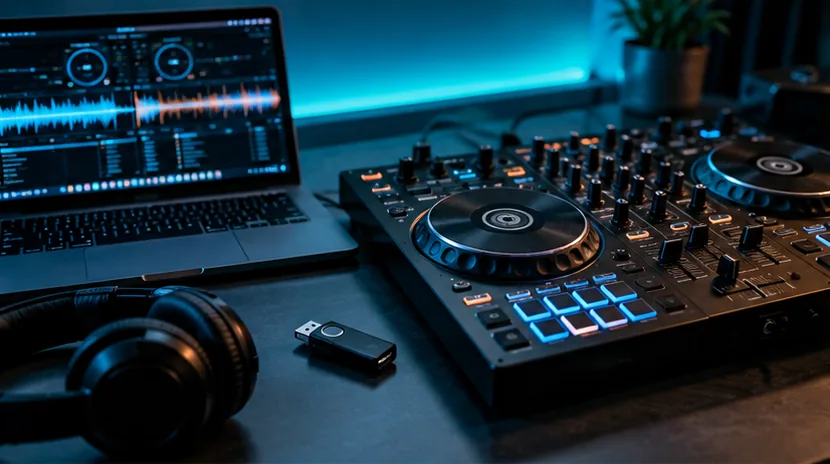
By default, the software records the Master output; external audio configurations may require a record loopback or another route. If your controller mixes some signals in hardware, the recording could differ from what you hear in the room.
For example, the official VirtualDJ DDJ-FLX4 guide documents a particular record input arrangement involving microphone audio. Make a twenty-second test, speak into the microphone if using one, then listen to the saved file before beginning the real set.
Listen critically after you stop
Import the saved mix into a normal audio player and listen away from the DJ controls. Mark three moments: a clean transition, one that was too loud and one with a timing issue. Choose a specific practice goal for the next session.
A recording is a learning resource. If you share one publicly, you may need separate permissions from music rightsholders and the relevant platform; saving a private practice file does not automatically grant publishing rights.
A repeatable practice loop
Make a ten-minute recording, listen back, identify one problem, repeat the exact same transitions and compare. Over time, this teaches more than switching to a new effect every time something sounds awkward.
Official sources and further reading
These original software-provider resources support the instructions above. Features, licensing and compatibility can change; check the latest version and your exact hardware before making a purchase or playing a gig.