Which DJ Controllers Work With VirtualDJ? A Compatibility Checklist
Find VirtualDJ-compatible controllers, including DDJ-FLX2, FLX4 and DDJ-400, and check drivers and required licences.
Features, software versions and hardware licences can change. Use the linked official support resources to confirm your exact device and account before purchasing or performing.
Support, licence and audio are three separate checks
A device may appear in the supported hardware list but still require a licence for unrestricted operation. Another device may provide MIDI controls without an integrated sound interface. Before buying, verify all three: control support, licence eligibility and master/headphone audio routing.
Do not assume that a controller advertised as “compatible with DJ software” works on your exact Windows or macOS release. Check manufacturer firmware and device drivers, particularly for discontinued hardware.
DDJ-FLX2, DDJ-FLX4 and DDJ-400
VirtualDJ publishes individual operation and setup manuals for the AlphaTheta DDJ-FLX2, Pioneer DJ DDJ-FLX4 and older DDJ-400. These demonstrate official support, but each guide also makes clear that full controller operation requires a suitable licence.
The DDJ-FLX2 and FLX4 are examples of current beginner hardware. A used DDJ-400 might be attractive when its controls and USB audio work, but a seller’s original software bundle does not settle your VirtualDJ licence needs.
Check the supported hardware directory before paying
Search the exact product identifier rather than the brand alone. Confirm whether the manual names your controller generation, whether setup involves manufacturer drivers, and whether the software offers a recognised audio profile.
For a used controller, ask the seller to demonstrate the jog wheels, faders, knobs, buttons, USB connection, audio outputs and headphone cueing. The listing photograph does not tell you whether the unit is reliable.
Plan for an ordinary home DJ setup
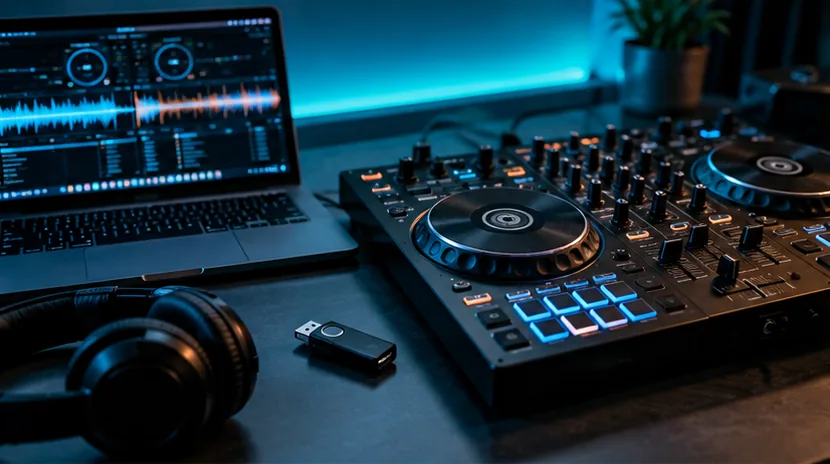
For a controller with a built-in audio interface, connect your laptop by USB, headphones to the controller and suitable powered speakers or an amplifier to the master output. In VirtualDJ Audio Settings, choose the recognised device profile and check that Master and Headphones use the correct output channels.
For unusual interfaces and older devices, follow the hardware manual. Avoid changing random mappings merely because the first track seems silent; first confirm the controller is recognised, the right output device is selected and the channel levels are up.
Before a live event
A gig-ready rig needs the correct professional licence, tested device drivers, local music, functioning audio outputs and a sensible fallback. Test the exact laptop and cables you intend to take, not a different household computer.
Use our used-controller checklist when purchasing archived gear and the Setup Builder to compare complete equipment allowances.
Official sources and further reading
These original software-provider resources support the instructions above. Features, licensing and compatibility can change; check the latest version and your exact hardware before making a purchase or playing a gig.