VirtualDJ for Your First Paid Gig: Licence, Audio and Backup Checklist
Prepare VirtualDJ for a live event with professional licensing, offline music, tested audio routing and a backup plan.
Features, software versions and hardware licences can change. Use the linked official support resources to confirm your exact device and account before purchasing or performing.
Confirm the right professional licence
VirtualDJ’s licence terms define professional use as activities where you are paid or compensated to DJ. Check your account shows an appropriate Pro licence before accepting a paid booking rather than assuming an entry-level Home or Free licence covers the event.
Confirm that any controller you plan to use is supported on your specific computer. A successful practice session on a different laptop does not prove the gig laptop will connect.
Agree what the venue provides
Find out whether the venue supplies PA speakers, a mixer, microphones, monitors and cables. Photograph or note the input connections during an advance visit where possible, and confirm who controls the main output level and the room’s sound limit.
Build your cable kit around the actual hardware: RCA and balanced connections are not interchangeable without considering levels, distance and proper interfacing. Carry suitable spares, but do not attempt untested rewiring minutes before the event.
Prepare dependable local music
Keep an organised local set covering the event’s likely requests and energy changes. Streaming access can be convenient, but Wi-Fi and account access can fail. Confirm the relevant music can be played without an internet connection.
Create a separate backup and verify that tracks load from it. A backup drive that has never been tested without the main drive is not much of a backup.
Soundcheck the entire route
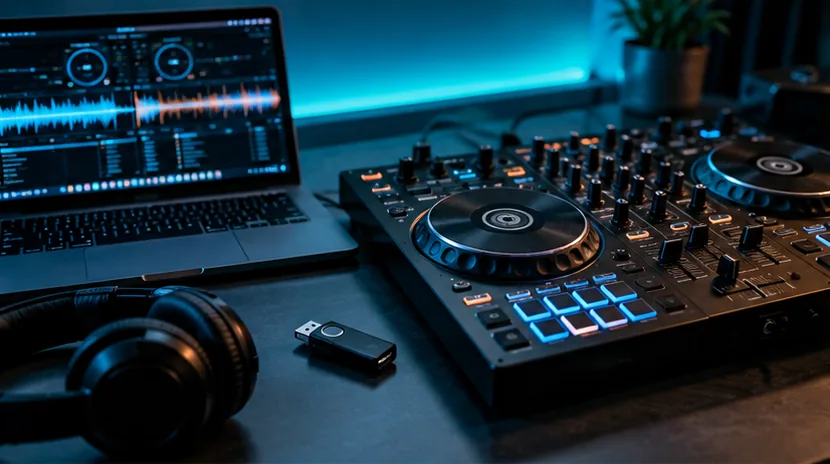
Power up the laptop and controller, test the main output through the venue PA at a safe level, then test separate headphone cueing. Check the microphone, if present, for excessive level and feedback.
Record a short sample where permitted and listen for crackles, clipping or unexpectedly quiet output. A successful cueing test in headphones does not prove the audience speaker route is correct.
Make a failure plan
Decide who can assist if the laptop or controller stops, where the backup music is stored and which connections are already known to work. Keep the setup simple enough to recover quickly.
Finish with FirstFader’s first gig checklist and music backup guide.
Official sources and further reading
These original software-provider resources support the instructions above. Features, licensing and compatibility can change; check the latest version and your exact hardware before making a purchase or playing a gig.